Setting Up Widgets in Skyslope Books: Step-by-Step Guide
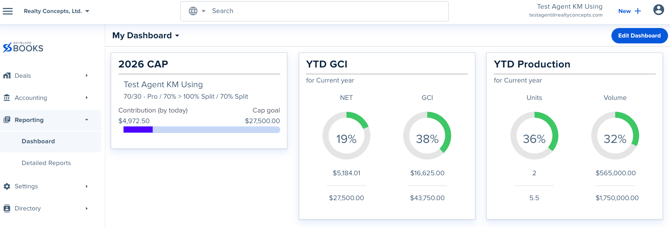
Agents can use Skyslope Books widgets to track key business metrics like Production, Income (GCI), and CAP. Follow this guide to get your dashboard up and running.
Step 1: Log In
-
Log in to Skyslope Books using your credentials.
Step 2: Access Reporting
-
From the left-hand menu, click Reporting.
-
If you don’t see it, click the three horizontal lines in the top-left corner to display the menu.
-
Step 3: Create a Dashboard
-
You should now see the Dashboard screen.
-
Click Create New Dashboard and name it My Dashboard.
-
On the right-hand side, click Edit Dashboard.
We recommend creating at least three widgets that will allow you to track Production, Income (GCI), and CAP.
Widget 1: Production
Configure Production Widget
-
Click Add New Widget (+).
-
From the Widget Type dropdown, select Production and click Add.
-
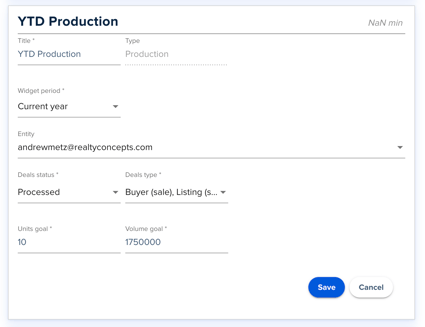
Enter the following information:
-
Title: Name your widget (e.g., “YTD Production”)
-
Widget Period: Current Year
-
Entity: Your email (If you are a team and unsure what to select please reach out to our accounting team!)
-
Deal Status: Processed (important for accurate data)
-
Deal Types: Select as many or as few as you like - recommended: Buyer (sale) and Listing (sale)
-
Units Goal: Enter the number of sides you aim to close for the year
-
Volume Goal: Enter your total sales volume goal for the year
-
-
Click Save - IMPORTANT: located in top right
Widget 2: GCI
Configure GCI Widget
- Click Add New Widget (+).
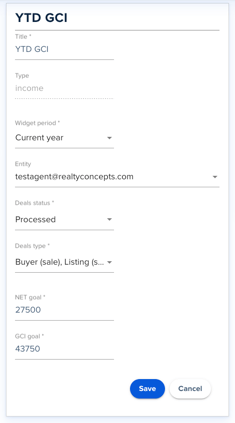
- Enter the following information:
-
-
Title: Name your widget (e.g., “YTD GCI”)
-
Widget Period: Select your desired timeframe (e.g., Current Year)
-
Deal Status: Processed (critical for accurate data)
-
Deal Types: Select as many or as few as you like - recommended: Buyer (sale) and Listing (sale)
-
Net Goal: This number includes all fees paid to Realty Concepts - including splits, transaction fees, agent billing (if deducted from commission). Our recommendation would be to enter your Total Cap ($27,500) as a starting point.
- NOTE: Actual contribution to CAP is recorded in your "CAP WIDGET" so expect to see a different number populate than your true YTD contribution to CAP
- GCI Goal: Enter your target total gross commission income for the perid
-
NOTE: This is your true agent GCI. There may be changes to your reported GCI at the end of the year once our accounting team completes an audit for all agents, filtering out office leads and other production exclusions. For more details on what counts towards production, you can review those details here: RC Award Level Details
-
-
3. Click Save - IMPORTANT: located in top right
Widget 3: CAP
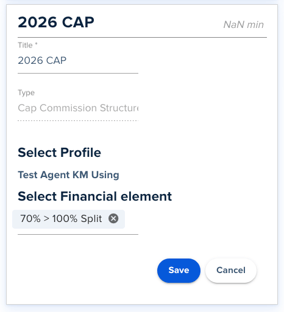
Configure CAP Widget
-
Click Add New Widget (+).
-
Enter the following information:
-
Title: Name your widget (e.g., “2026 CAP”)
-
Select Profile: Your commission plan should auto-populate
- Select Financial Element: Choose the option that matches your split (e.g., 70% > 100% Split)
-
- Click Save. This will display the amount you have contributed to your CAP so far this year!
Final Step: Save Your Dashboard
-
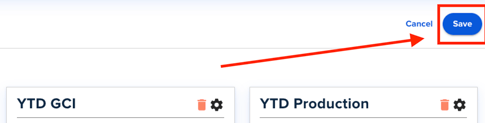
In the upper right-hand corner, click the blue Save button to save all your changes.
-
This ensures all your widgets, goals, and settings are applied to your dashboard.
-
Additional Notes
-
If you click Edit Dashboard again, you can drag and drop your widgets to organize them however you like.
-
You can add more widgets, fewer widgets, or multiple widgets with different timeframes depending on your needs.
- If you have any questions, please reach out to your manager or our accounting team.
✅ Hooray! Your dashboard is now fully set up to track Production, GCI, and CAP in Skyslope Books, giving you a clear view of your business performance.