
Step 1: Log in to SkySlope Books
- Go to skyslope.com and enter your login credentials to access your account
- Click on the 'Apps' icon at the top right
- From the Apps menu, at the top right hand corner, select 'Books'
- (**If you've never logged in before you will likely be prompted to set up Multi Factor Authentication (MFA). Follow the prompts on the screen to complete this.)
Step 2: Clear Filters (If Needed)
If you do not see all of your deals on the landing page:
-
Click the Filter (funnel) icon in the top right corner.
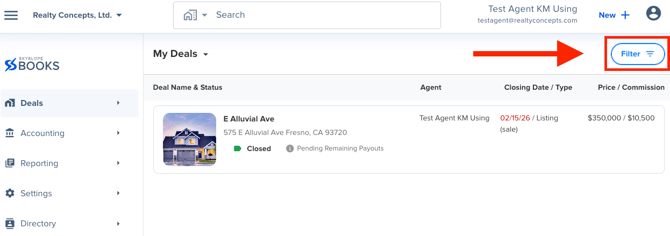
-
Select “Clear Filters.”
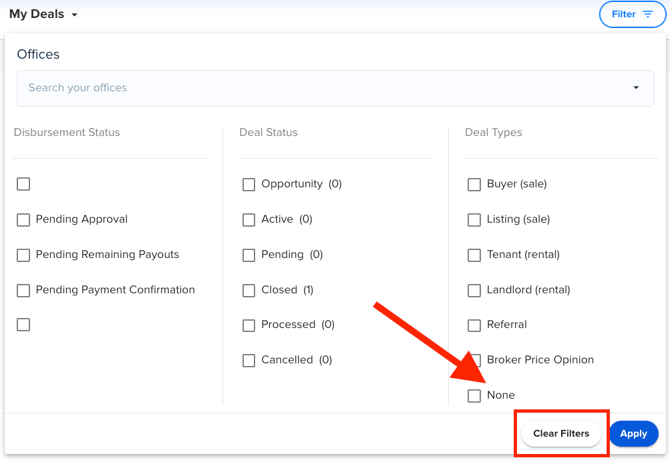
This will refresh the page and repopulate the screen with all of your deals.
Step 3: Open the Deal
Click on the deal for which you would like to view the commission detail breakdown.
Step 4: Access the Commission Breakdown (aka Agent's Own Trade Sheet)
-
On the far right side of the deal screen, click the Printer icon.
-
Select “Agent’s Own Trade Sheet.”
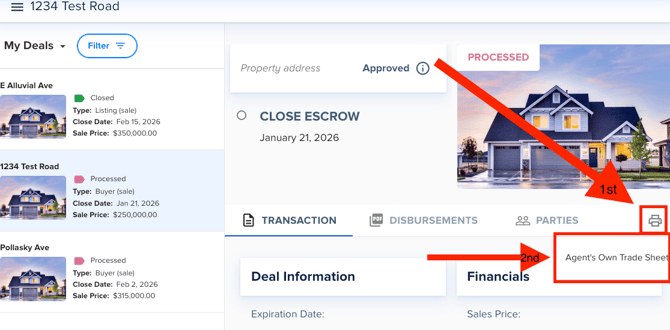
Step 5: View and Download Your Report
A new tab will open with a PDF showing a detailed breakdown of all expenses deducted from your commission.
From there, you can:
-
Download the PDF
-
Save it to Google Drive
-
Print a copy for your records
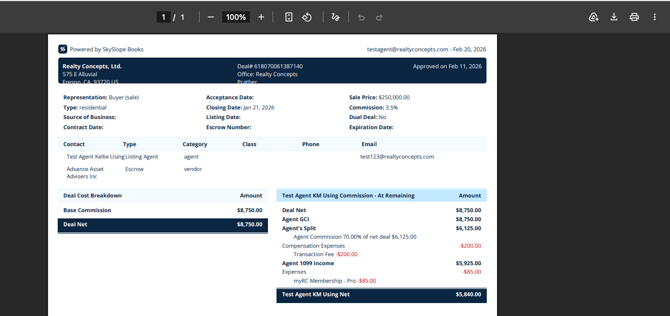
If you need a little extra help or have any questions, just reach out to our team at accounting@realtyconcepts.com — we’re always happy to help!